Want a new feature, find something awkward, or spot a problem? Tell us right inside the app.
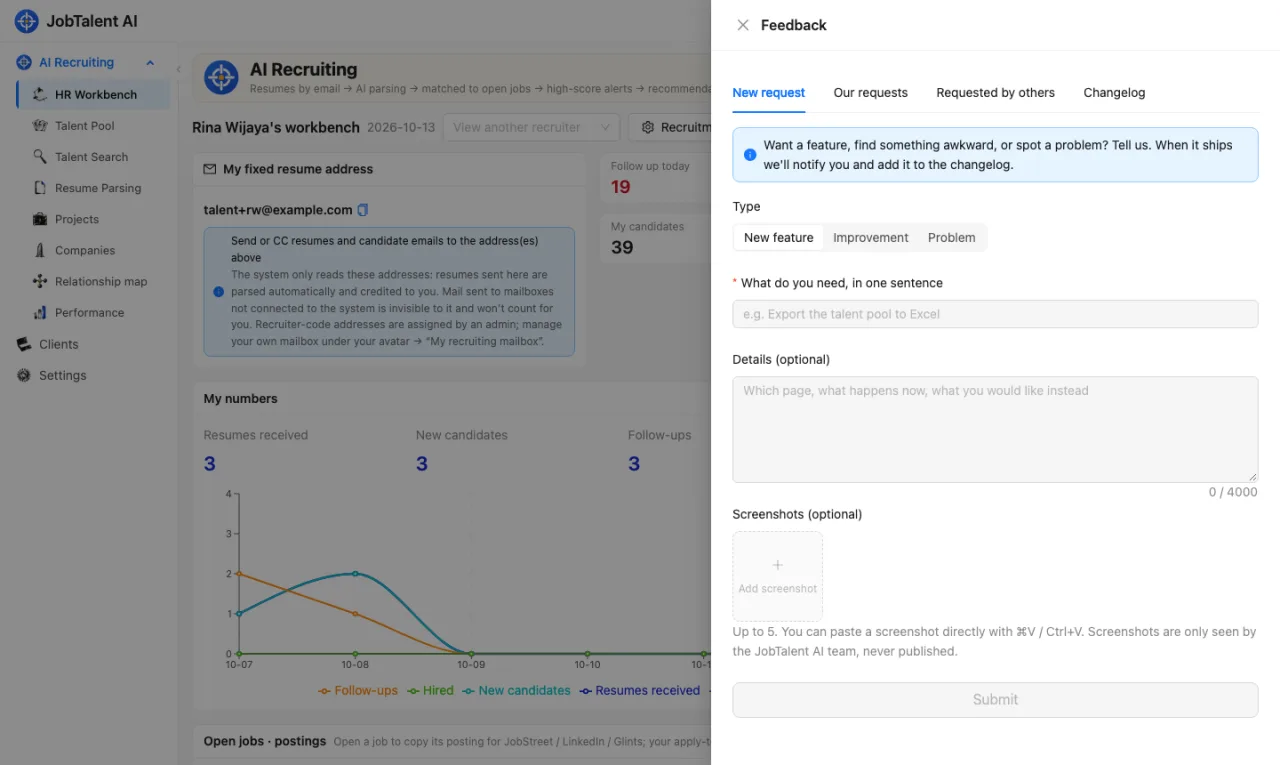
Sending a request
- Click the light-bulb icon, Feedback, in the top-right corner.
- Under New request, choose a type (new feature / improvement / problem), describe what you need in one sentence, and add details if helpful.
- Add up to 5 screenshots: click Add screenshot, or paste a screenshot directly with ⌘V (Ctrl+V on Windows).
- Click Submit.
Screenshots are only seen by the JobTalent AI team and are never published, so it's fine if they show candidate details.
Following progress
Our requests lists everything your company has sent. For each one you can see:
- Status: Received → Planned → In progress → Shipped. It may also be Not planned, or merged with another request.
- Our reply.
- A timeline of when it was sent and when the status changed.
When the status changes or we reply, you get a message under the bell in the top-right corner; click it to jump straight to that request.
Requests from other companies
Requested by others shows open requests from other companies, with only the title and company name. If you need it too, click We need this too; the more companies need something, the sooner we build it.
Changelog
Shipped requests appear in the Changelog, showing which company asked for it, when it went live and how to use it, sometimes with screenshots of the new feature. There is also a public changelog on our website, which does not show company names.
The changelog never shows anyone's name or email.