A recommendation report has two parts: the recommendation letter and the candidate profile. AI drafts them from the candidate profile and the job requirements. You edit them, export to PDF or Word, and send them to the client yourself.
Create a recommendation report
- Open the candidate details → "Matches". On the row of the position you want to recommend for, click "Report".
- In "Recommend to client", choose the client. The "To" line in the letter heading will show this client.
- Choose the language: 中文, English or Indonesia, and click "Generate with AI". It takes about 20–40 seconds. You can do other work in the meantime.
- Switch between "Candidate Recommendation" and "Candidate Profile" to view each part.
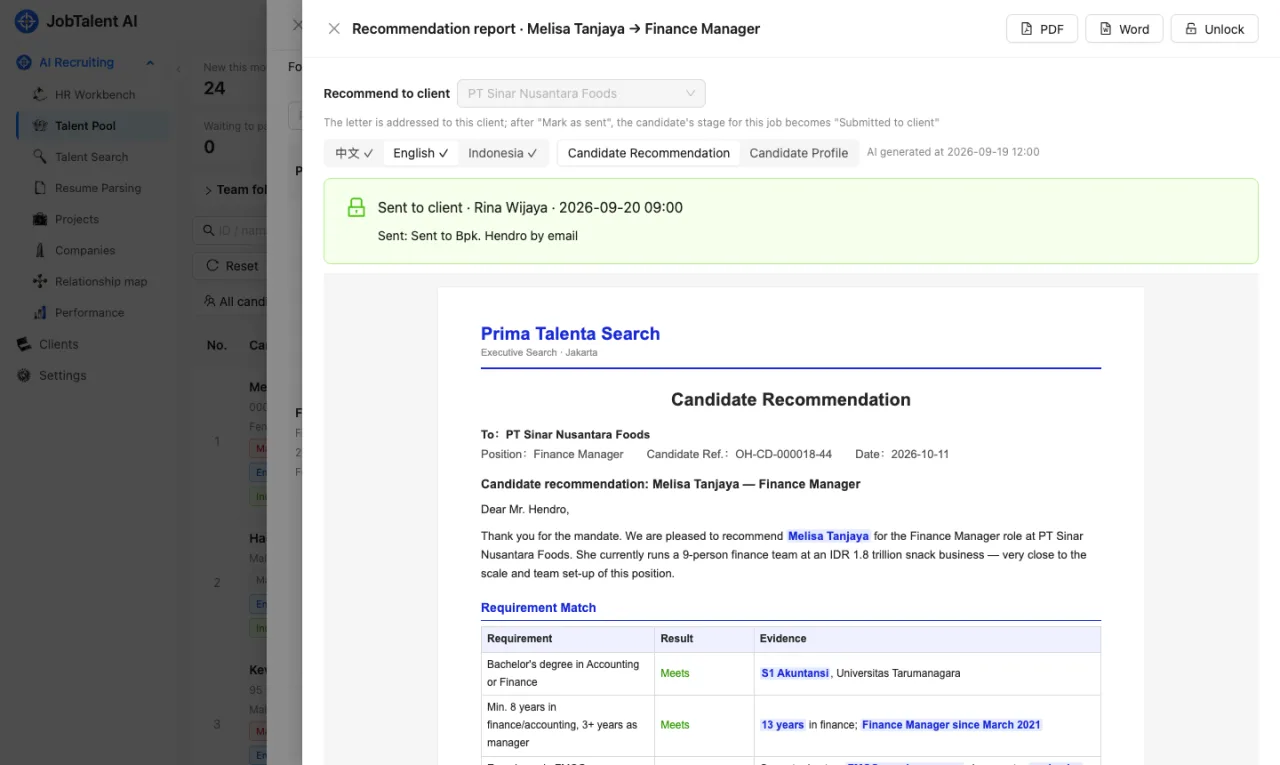
AI only uses facts from the profile and does not invent experience. Points that match the job requirements are highlighted. Each language must be generated separately.
Editing
- Click "Edit wording" to change the text directly. Wrap a match point in
**…**and it is highlighted in the preview, PDF and Word. - If you're not happy with a paragraph, use "AI rewrite". For example, choose "More concise", "More formal" or "Stress experience matching the job requirements", or write your own instructions.
- Changes here only affect the version the client sees. They do not change the candidate profile.
- If the candidate profile or job requirements were changed after the report was generated, the page suggests generating it again. Regenerating overwrites your edits, so the system asks you to confirm first.
Until all required manual fields in the template are filled in, you cannot export or mark the report as sent.
Export and send
When you're done, click "PDF" or "Word" to export, then send it to the client by email or WhatsApp. The system does not send it to the client for you.
After sending, come back and click "Mark as sent". You can note who it was sent to and how. After marking:
- The candidate's stage for this position changes to "Submitted" automatically.
- The recommendation letter is locked and can't be edited. If changes are needed, someone with "Recruitment admin" permission clicks "Unlock".
Templates and letterhead
Someone with "Recruitment admin" permission sets these up in "Settings" → "Recommendation templates".
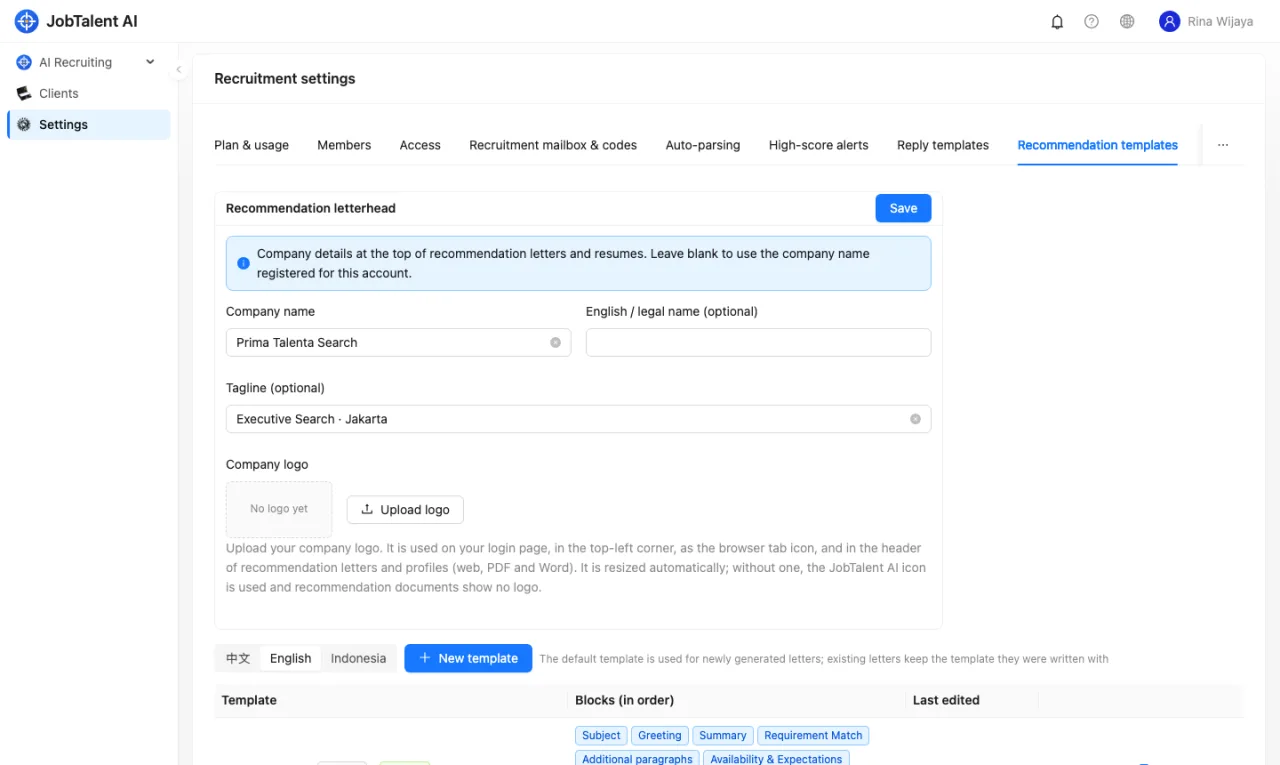
The header uses the logo your company uploads; without one, only the company name is shown. The same logo also appears on your login page, in the top-left corner of the app, and as the browser tab icon. The letter is signed by whoever generated it: "Recommended by: name · job title" (set job titles under Settings → Members).
- Recommendation letterhead: the company name, English or legal name and tagline shown at the top of the recommendation letter and candidate profile. If left empty, the company name registered when your account was opened is used.
- Templates: the system has built-in templates. You can "Copy as new" and edit the copy, or click "New template". A template is made of blocks in order: AI section, fixed text, manual field, profile field. You can insert variables into fixed text, such as client name, position, candidate name, consultant name and contact details, date, and "School" (written as one line, e.g. "Graduated from University of Indonesia · Depok · Public · QS 2026 #189 · BAN-PT Unggul").
- Each language can have one default template, used for recommendation letters generated from then on. Letters already written keep the template they were written with and are not affected.
- You can also switch templates while creating a report. Switching only changes the layout and fixed text. AI-written content and manual fields are kept.