Recruiting work in the system is organised in three levels: Client → Recruiting project → Position. One client can have several projects, and one project can have several positions. Candidates are matched against "positions".
Clients
In the left menu, open "Clients" and click "New client". Enter the client name, legal name, industry, city and so on. The legal name is used in the recommendation letter heading and as the contracting party on contracts.
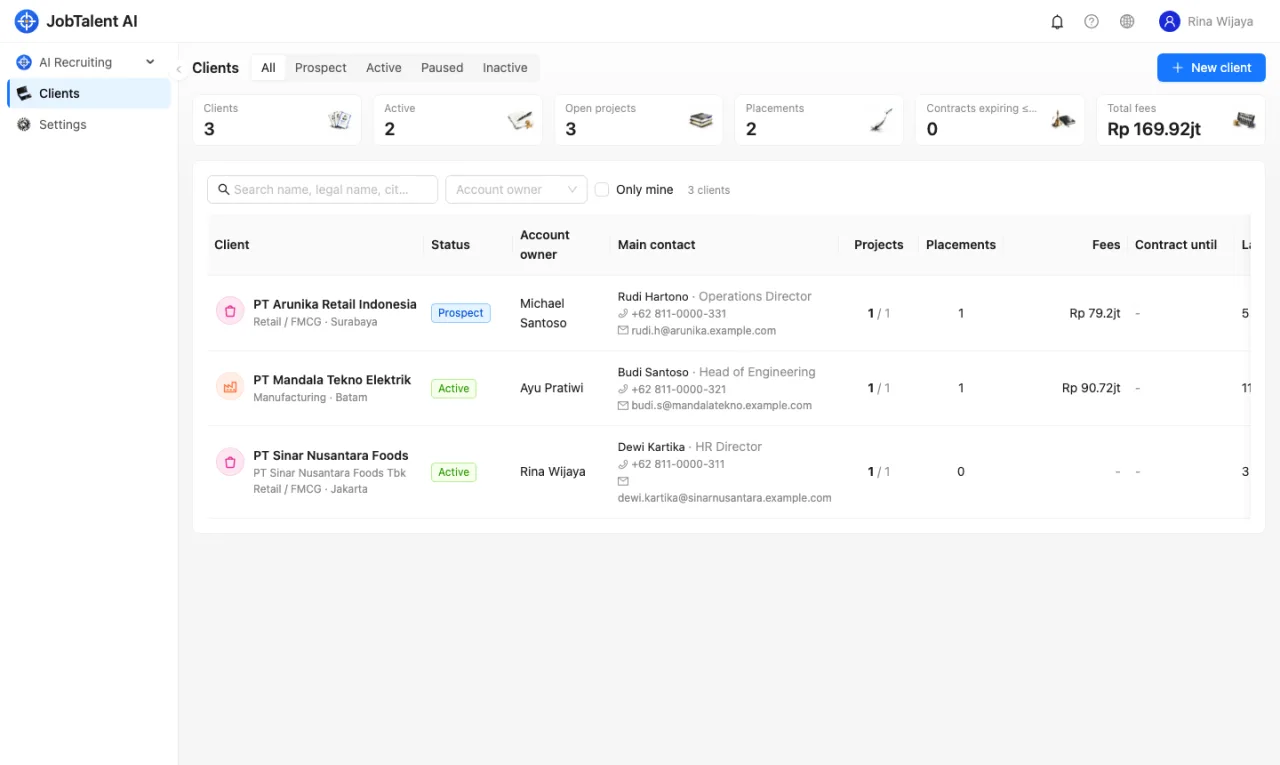
When you open a client, you see these tabs:
- Overview: basic details and default terms. Once default terms are set, new projects for this client will use them automatically.
- Contacts: hiring managers, HR, finance, decision makers and so on. You can mark the main contact.
- Activity: records of calls, meetings, visits and emails.
- Projects: recruiting projects under this client.
- Contracts: upload client agreements, NDAs and so on. PDF, images and Word are supported, up to 20MB per file. You can enter an expiry date.
A client's "Status" can be Prospect, Active, Paused or Inactive. A client that still has projects cannot be deleted. Change it to "Inactive" instead.
Recruiting projects
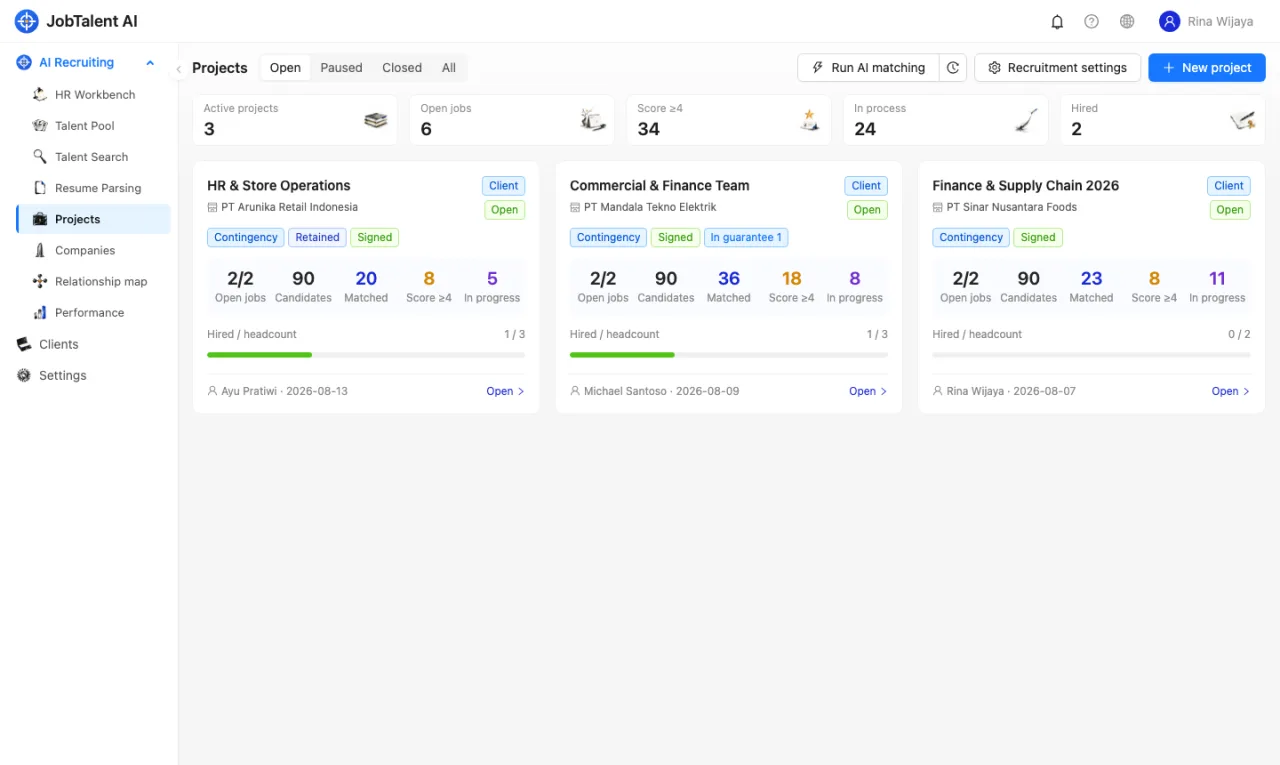
Go to "AI Recruiting" → "Projects" and click "New project":
- Type: Client (you must choose a client; if you can't find it, you can create it here) or Internal.
- Project name, Manager, Notes.
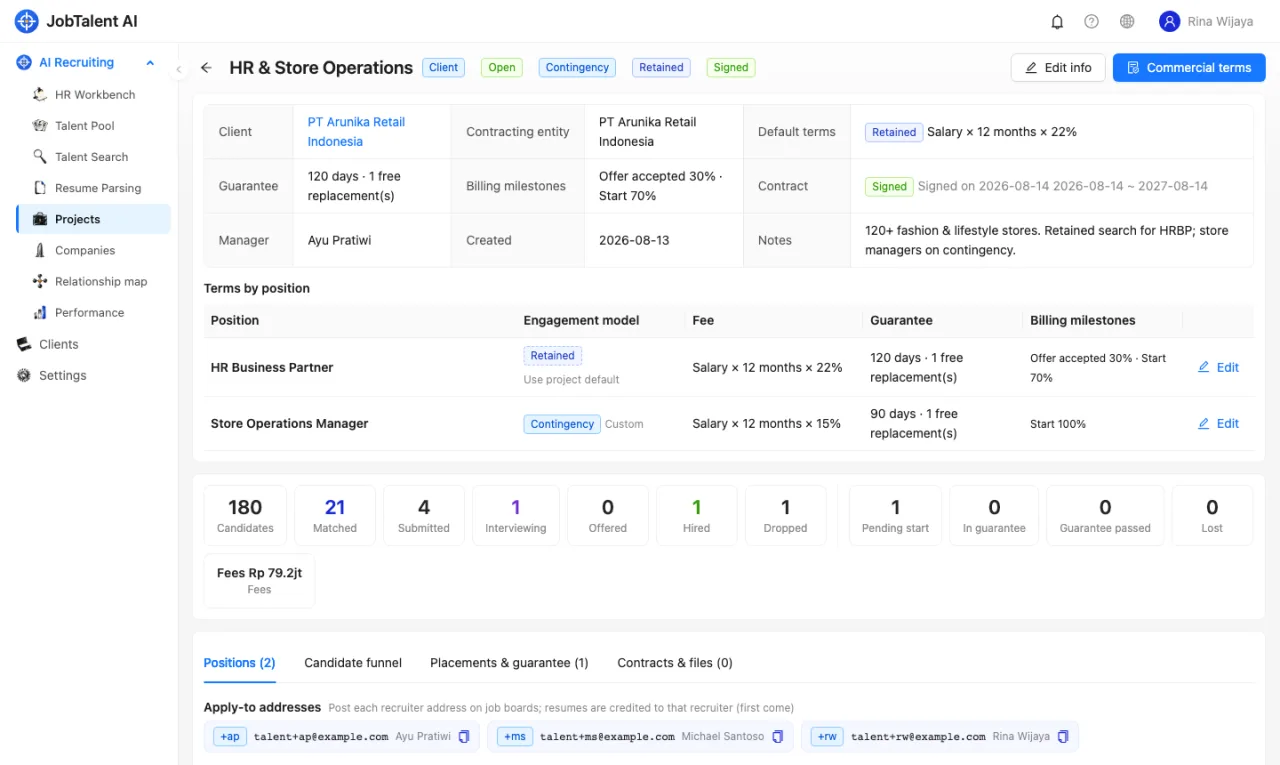
- Engagement models: headhunting, RPO, EOR and so on. You can choose more than one. Fee rates and guarantee periods are set in the project's "Commercial terms".
- Status: Open, Paused, Closed.
The project page also shows the candidate funnel, placements and guarantee periods, and contracts and files.
Positions
In a project, click "New position". Enter the position title, location, employment type, headcount, salary and status, then paste the job description (JD).
- Click "AI split requirements". AI splits the JD into 3–10 requirements on the spot, marked "Must" or "Nice". Check and edit them, then save.
- You can also save without splitting. The system splits it automatically in the background about every 5 minutes.
- Requirements you edited by hand will not be overwritten by AI. If you later change the JD, requirements you did not edit are split again automatically.
The more precise the requirements, the more reliable the AI score. See AI parsing and candidate–job matching.
In a position you can also generate a "Job posting" in Chinese, Indonesian and English. When you copy it, your application address is added at the end automatically, so you can post it on JobStreet, LinkedIn, Glints and other platforms. You can also create an application link for the position. See Other ways to add resumes.
Which positions are matched by AI
Position status can be: Open, Paused, Filled, Closed.
AI only matches new resumes to a position when the position is "Open" and its project is "Open". The application link also only works at that time. When a position is filled or paused, change its status right away so AI stops sending people to it.