Add and manage members
Only admins can manage members. Go to "Settings" → "Members":
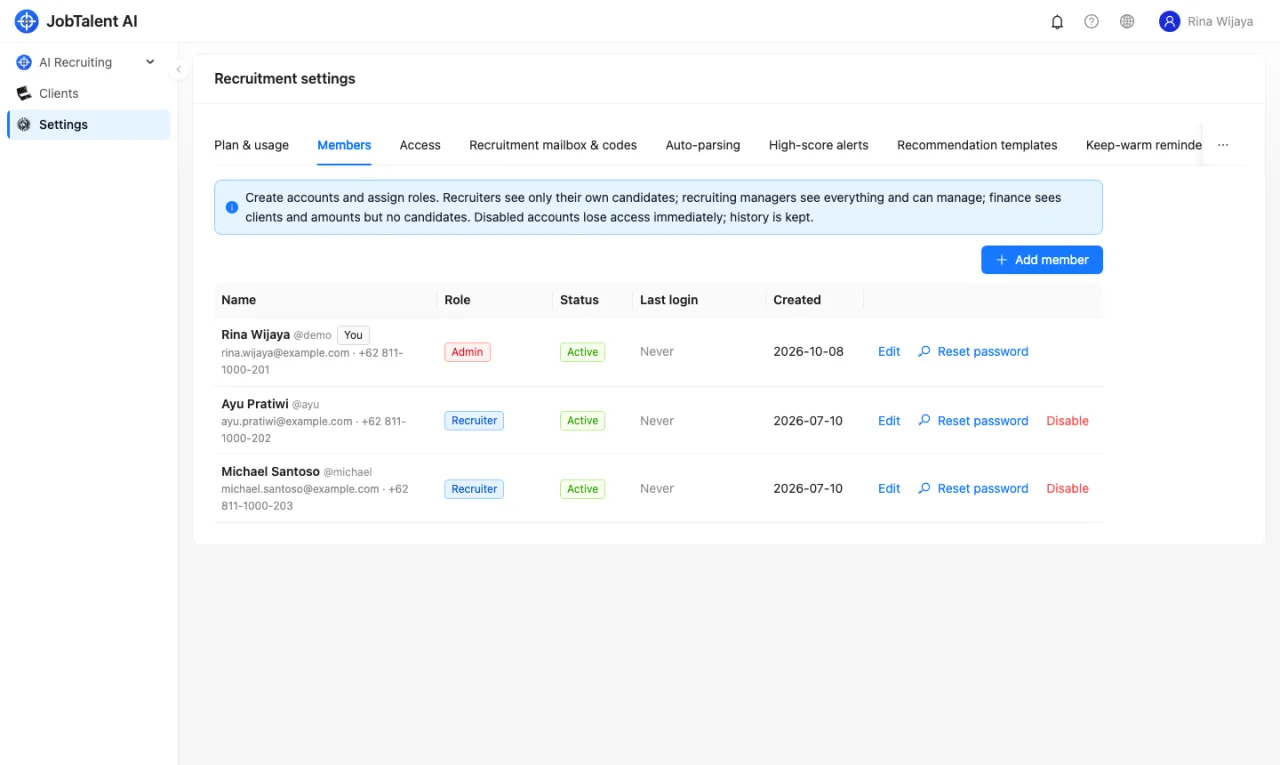
Each member can have a "Job title", for example HR Director. Recommendation letters are signed "Recommended by: name · job title", see Recommendation reports.
- Click "Add member". Enter the name, username, role and an initial password (at least 8 characters).
- The username can only contain letters, digits and
._@-. It cannot be changed after the account is created. - After saving, give the username and initial password to the colleague.
Other common tasks:
- Reset password: when a colleague forgets their password, an admin clicks "Reset password" in the member list, sets a new password (at least 8 characters) and gives it to them. There is no self-service "Forgot password" option yet.
- Disable: when a colleague leaves, click "Disable". They can no longer log in, effective immediately. Members cannot be deleted. After an account is disabled, the name is kept in the history.
- You cannot disable or downgrade yourself. The system must always have at least one active admin.
If your only admin forgets their password, contact us to reset it.
The four roles
| Role | What they can see and do |
|---|---|
| Admin | Everything, including member management and all settings |
| Recruiting manager | Sees all candidates, all resumes and recruiting performance; can claim, transfer ownership, merge candidates and change recruiting settings |
| Recruiter | Can open AI Recruiting, but only sees their own candidates and the resumes they received or uploaded |
| Finance | Can open "Clients" and see client details, contracts and amounts; cannot see candidates or resumes |
"Your own" means you are the candidate's owner. Ownership goes to "the first person who received this resume": a resume sent to your recruiter code address or your own recruiting mailbox, uploaded by you, or submitted through your application link counts as yours.
Give one person extra permissions
A role is a set of default permissions. If you only want to give one person a little more access, you don't need to change their role. Go to "Settings" → "Access", find the person and turn on the matching switch.
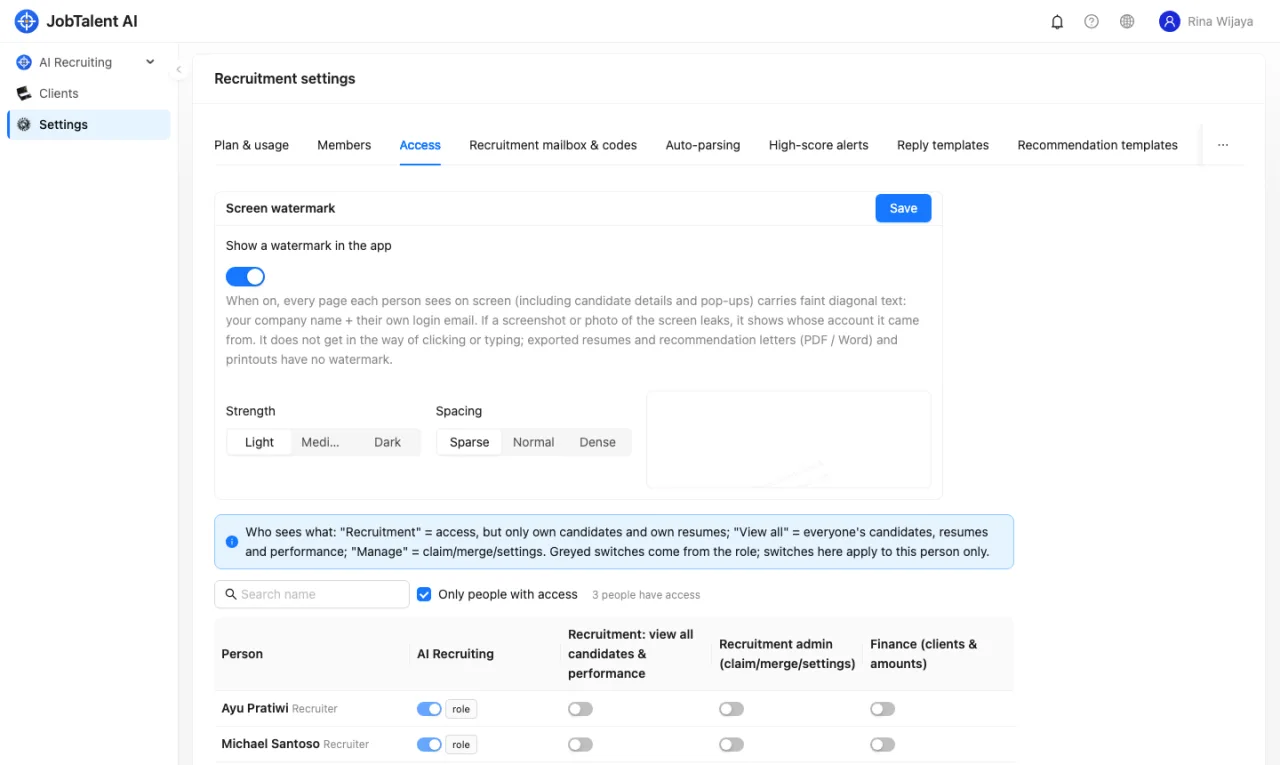
- AI Recruiting: can open the recruiting module, only sees their own candidates.
- View all: sees everyone's candidates, resumes and the recruiting performance board.
- Recruitment admin: claim, transfer ownership, merge candidates, recruiting settings (includes "View all").
- Finance: sees clients and all amounts, cannot see candidates.
A grey switch means the permission comes from the role. To remove it, you must change the role itself.
Separate access to the company library
Only people on the list can see "Companies" and "Relationship map". This applies to admins too. The list is managed under "Access" in the company library.
Member limit
The number of active members is limited by your plan. When you reach the limit, adding or re-enabling a member shows "Your plan’s member limit has been reached". You can disable accounts that are no longer used, or contact us to upgrade your plan. See Plans, resume credits and top-ups.