This month and calendar on the HR Workbench brings this month's results and everything with a date into one place. When an admin switches to another recruiter at the top of the page, it shows that recruiter's data.
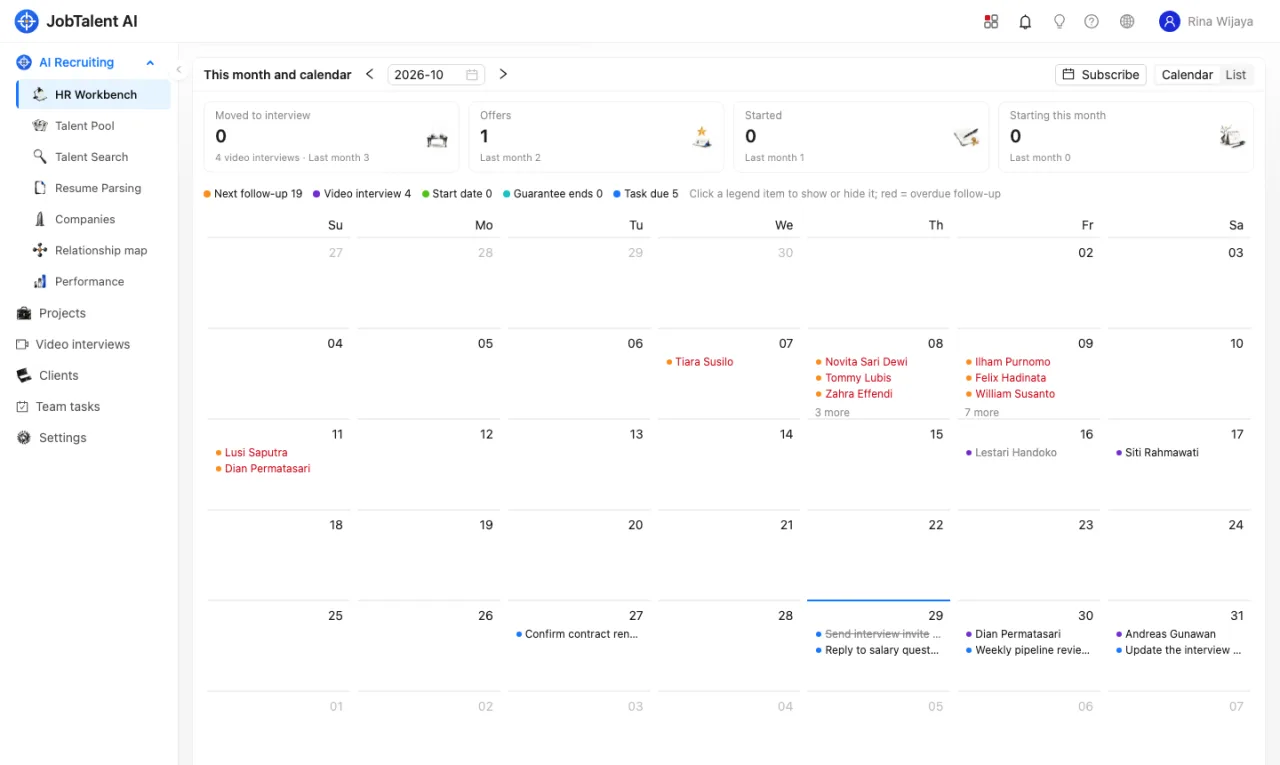
This month's numbers
| Number | What it counts |
|---|---|
| Moved to interview | Candidates moved to the Interview stage this month; the number of video interviews this month is shown below |
| Offers | Candidates moved to the Offer stage this month |
| Started | Placements whose actual start date is this month (no-shows and withdrawals are not counted) |
| Starting this month | Accepted offers expected to start this month that have not started yet |
Each number also shows last month's figure. Click a number to see the candidates, then click a name to open the candidate. Use the arrows or the month picker next to the title to change the month.
Calendar
The calendar brings together five kinds of dates:
- Next follow-up: the next follow-up date entered with a follow-up note. Overdue ones are shown in red.
- Video interview: video interviews you scheduled or for your candidates; cancelled ones are hidden.
- Start date: expected and actual start dates from placements.
- Guarantee ends: the end of the guarantee period for candidates who have started.
- Task due: due dates of team tasks assigned to you, see Team tasks and priorities.
Switch between Calendar and List at the top right. The calendar shows up to three items per day; click a day to see all of them. The list shows every item by date. Click a legend item to hide or show that kind. Click a candidate to open the candidate, or a task to open the task.
Subscribe in Google Calendar
You can sync this schedule to Google Calendar, Outlook or Apple Calendar and see it on your phone.
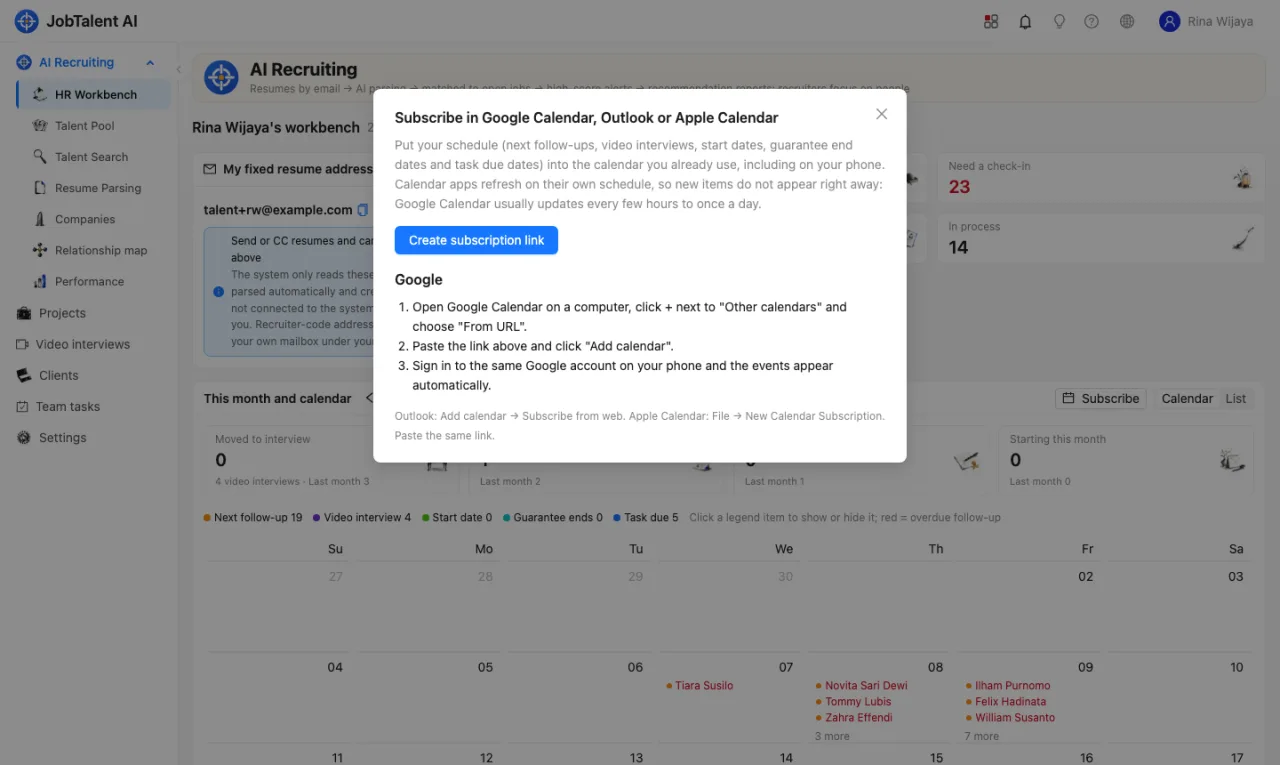
- In This month and calendar, click Subscribe at the top right, then Create subscription link, and copy the link.
- Open Google Calendar on a computer, click + next to Other calendars, choose From URL, paste the link and click Add calendar.
- Sign in to the same Google account on your phone and the events appear automatically.
Outlook: Add calendar → Subscribe from web. Apple Calendar: File → New Calendar Subscription. Paste the same link.
- The subscription covers the past 60 days to the next 180 days, only your own schedule, and is read-only in your calendar.
- Calendar apps refresh on their own schedule: Google Calendar usually updates every few hours to once a day, so new items do not appear right away.
- The link is shown only once, when it is created. Anyone with the link can see your schedule (including candidate names), so do not share it. If it leaks, click Regenerate and the old link stops working immediately; click Turn off to stop syncing.
- If your account is deactivated, the link stops working.