Video interviews let consultants interview candidates directly in the system. Candidates join from their browser with no app to install, and consultants record candidate details on the right while they talk. When the interview ends, the details are written back to the profile.
Video interviews are available on the Pro plan and above. Time is deducted from resume credits; see "Billing" below.
Schedule an interview
- Open the candidate's details and click "Video interview".
- Choose the position, time, duration and invitation language (defaults to the candidate's resume language), then click "Schedule interview".
- Send the invitation: - Invite via WhatsApp: opens a WhatsApp chat with the invitation pre-filled for you to send. - Invite by email: sent from the recruiting mailbox that received the candidate's resume, as a reply to the original email. - Copy link: share it through any other channel.
The invitation includes the time, the link and tips on browser and device.
Interview overview
"Video interviews" in the sidebar lists every interview:
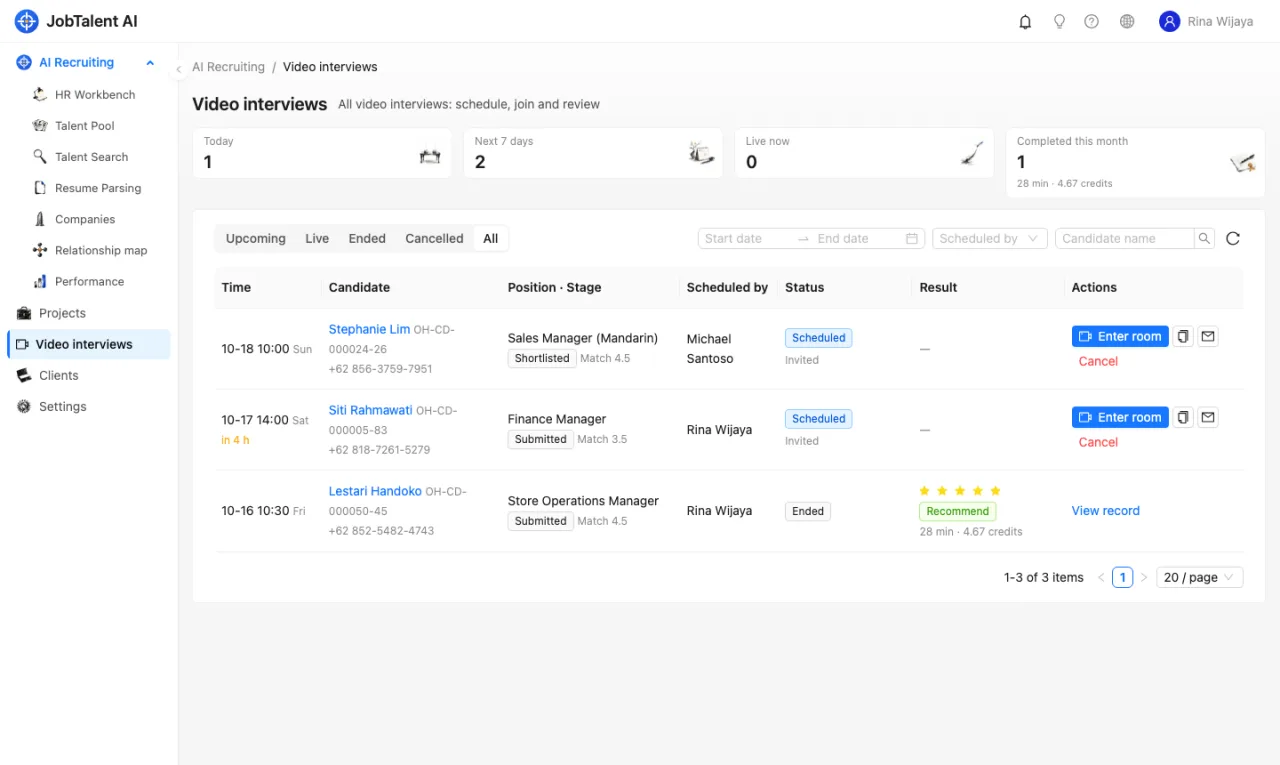
- The cards at the top show interviews today, in the next 7 days, live now and completed this month (with minutes and credits used). Click a card to filter.
- Switch between Upcoming, Live, Ended and Cancelled, and filter by date, scheduler or candidate name.
- Interviews without a sent invitation are highlighted; live interviews show whether the consultant and the candidate are online.
- Ended interviews show the rating, recommendation, duration and credits used. Click "View record" to open the candidate's details.
Recruiters see only interviews for candidates they own and interviews they scheduled.
Interview room
Click "Enter room" in the list or in the candidate's details. The room opens in a new tab:
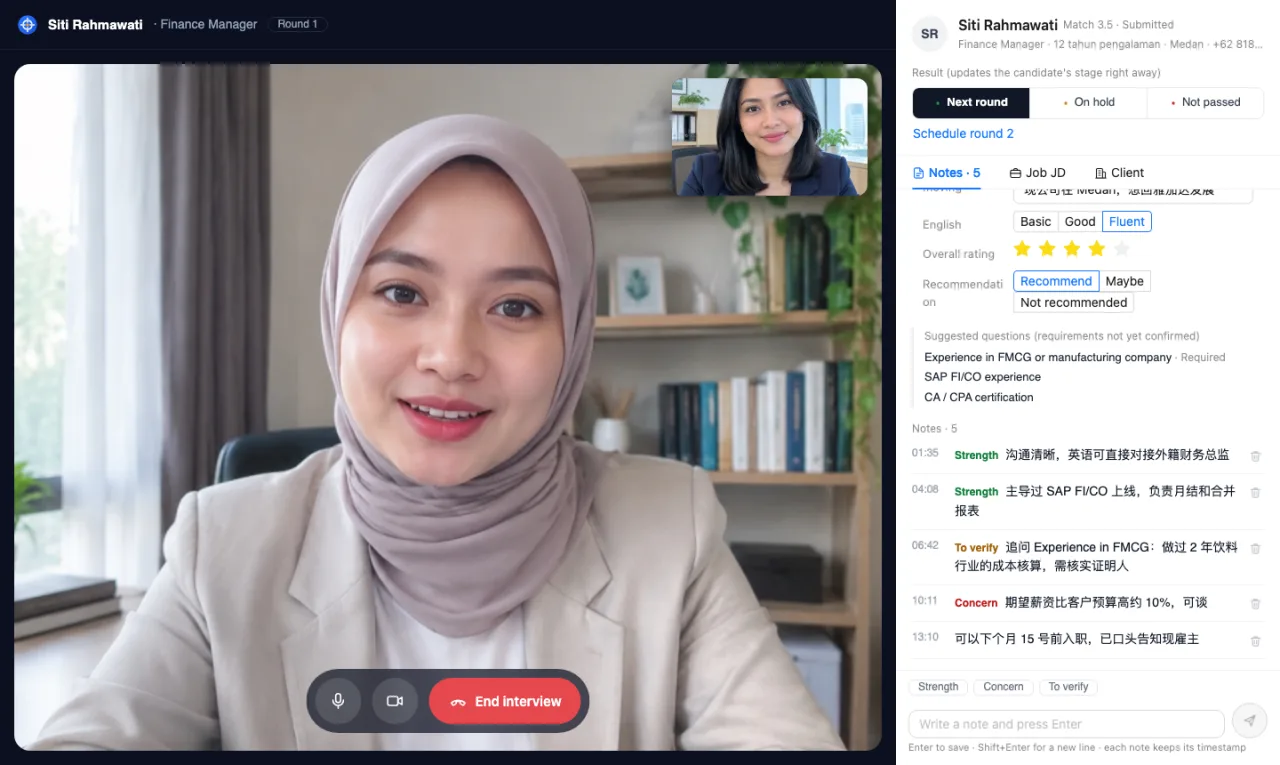
- Left: the video, with mute, camera off and end interview controls.
- Right: the candidate profile and interview notes: current salary, expected salary, notice period, employment status, intent, reason for moving, English level, rating and recommendation.
- Suggested questions: requirements of the position not yet confirmed (★ marks must-haves), so you can confirm them during the interview.
- Notes: free text, saved automatically every 5 seconds.
End the interview
Click "End interview" and confirm:
- With "Update salary, expectation, notice period and intent on the profile" ticked, these details update the candidate's status fields.
- Notes and assessment are saved as a follow-up record (Interview · Video).
- For interviews linked to a position, the candidate's stage for that position moves to "Interviewing".
If a consultant closes the page without ending the interview, it ends automatically after 5 minutes and is billed.
How candidates join
Candidates open the link, choose Indonesian, English or Chinese, tick the consent box and click "Join interview". We recommend Chrome or Safari on a laptop or phone; allow camera and microphone access when the browser asks.
Billing
- Only time when both the consultant and the candidate are present counts, rounded up to the minute and deducted from resume credits: 5 credits per 30 minutes.
- Up to 2 people per interview; each interview lasts at most 90 minutes and then ends automatically.
- At least 30 minutes' worth of credits must remain to start; if credits run out during the interview, it ends automatically.
- Duration and credits for each interview are shown in this list and under "Settings" → "Plan & usage".