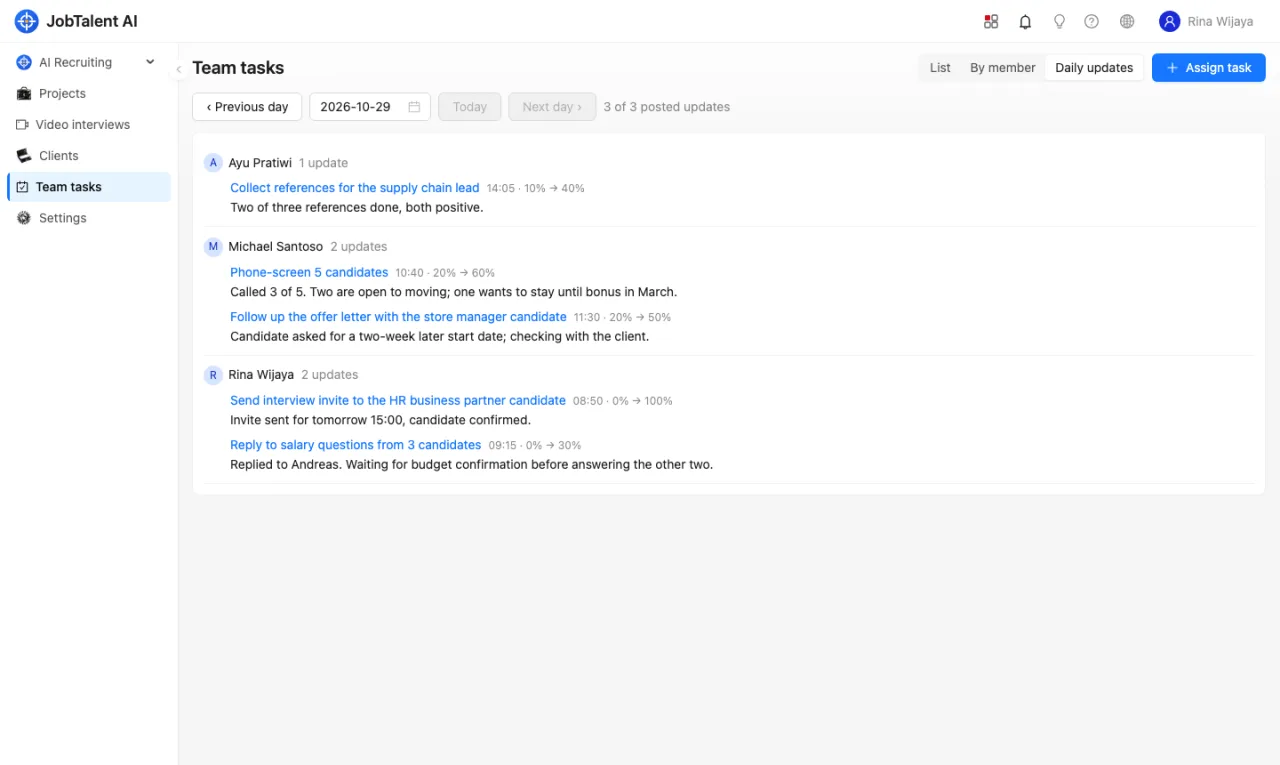
Team tasks help a recruiting team manage day-to-day work: who owns what, when it is due, and how far it has progressed. Every recruiting and finance member can see all tasks and updates.
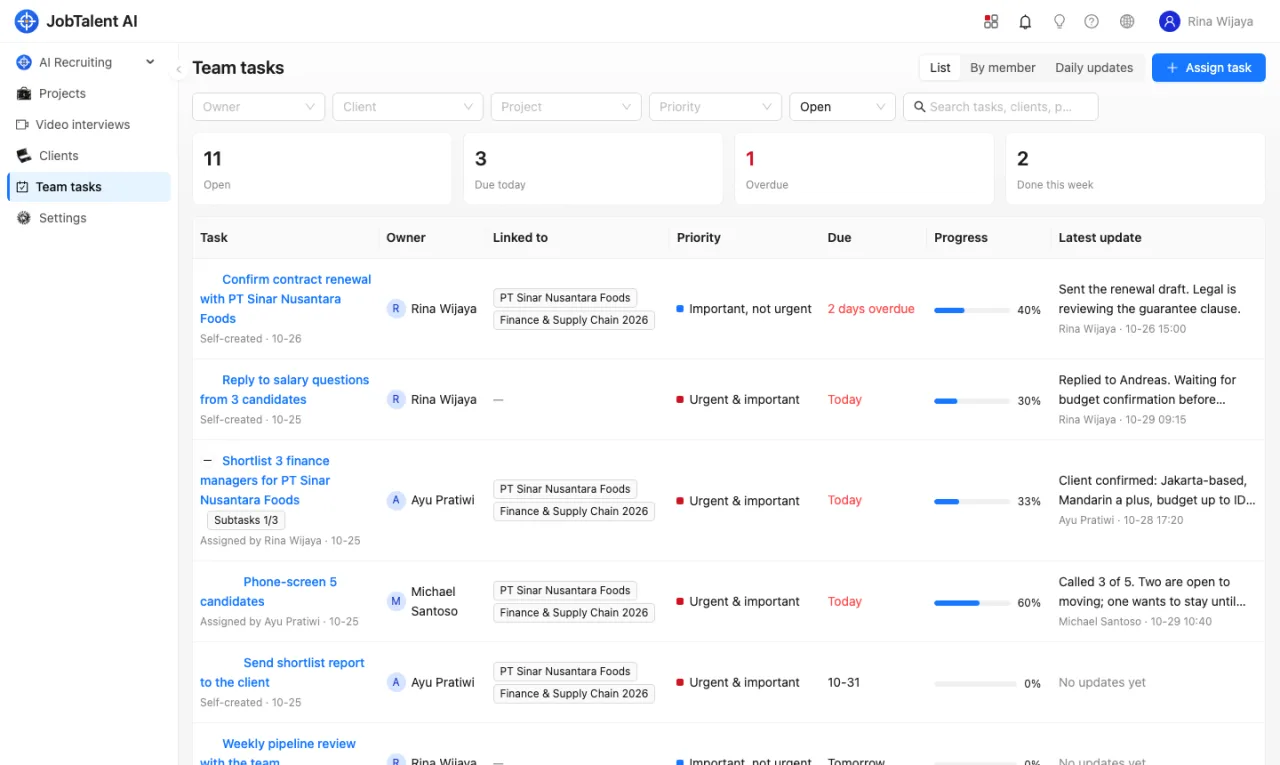
Assign a task
- Open Team tasks in the left menu and click Assign task.
- Enter the task, choose the owner, due date and priority, and optionally link a client or recruiting project.
- After saving, the owner receives an in-app notification.
If no owner is chosen, the task is assigned to you, which works well for personal to-dos.
Priorities (four quadrants)
The four-square icon at the top right opens My priorities, which groups tasks by importance and urgency:
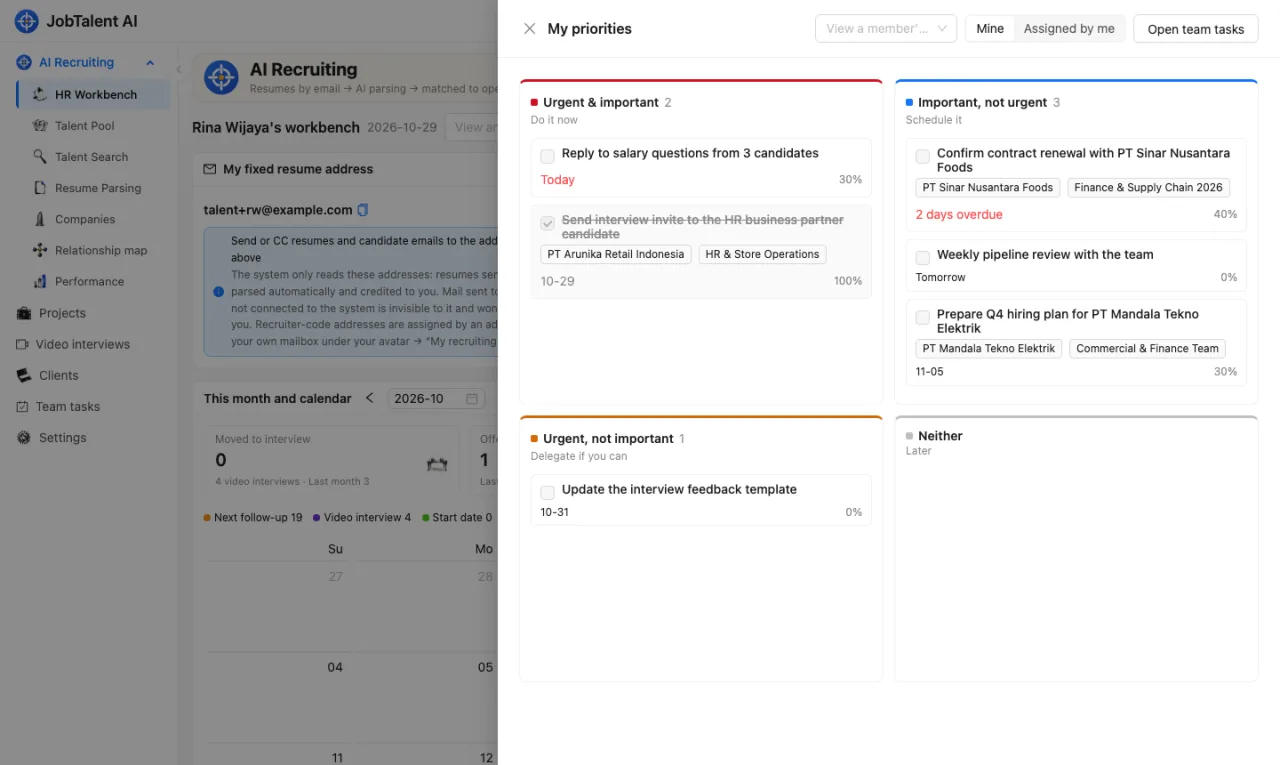
| Quadrant | Suggested action |
|---|---|
| Urgent & important | Do it now |
| Important, not urgent | Schedule it |
| Urgent, not important | Delegate if you can |
| Neither | Later |
- The number on the icon is your open tasks in "Urgent & important".
- Drag a card to move it to another quadrant, or use the "⋯" menu on the card and choose Move to.
- Type in the box at the bottom of a quadrant and press Enter to add a task. Its due date is today by default, so you can list what you plan to do each day.
- Tick the box on a card to mark it done. Tasks done today stay in place, struck through; click again to undo.
- Use the "⋯" menu on a card to Cancel task or Delete it. Tasks cancelled today stay struck through and marked Cancelled; choose Reopen in the "⋯" menu to bring one back.
- Recruiting admins can pick a member under View a member's board to see that member's plan, and add tasks to their quadrants (which assigns the tasks to them).
- Mine shows tasks assigned to you; Assigned by me shows tasks you gave to others.
Subtasks
Break a larger task into subtasks and give them to different people:
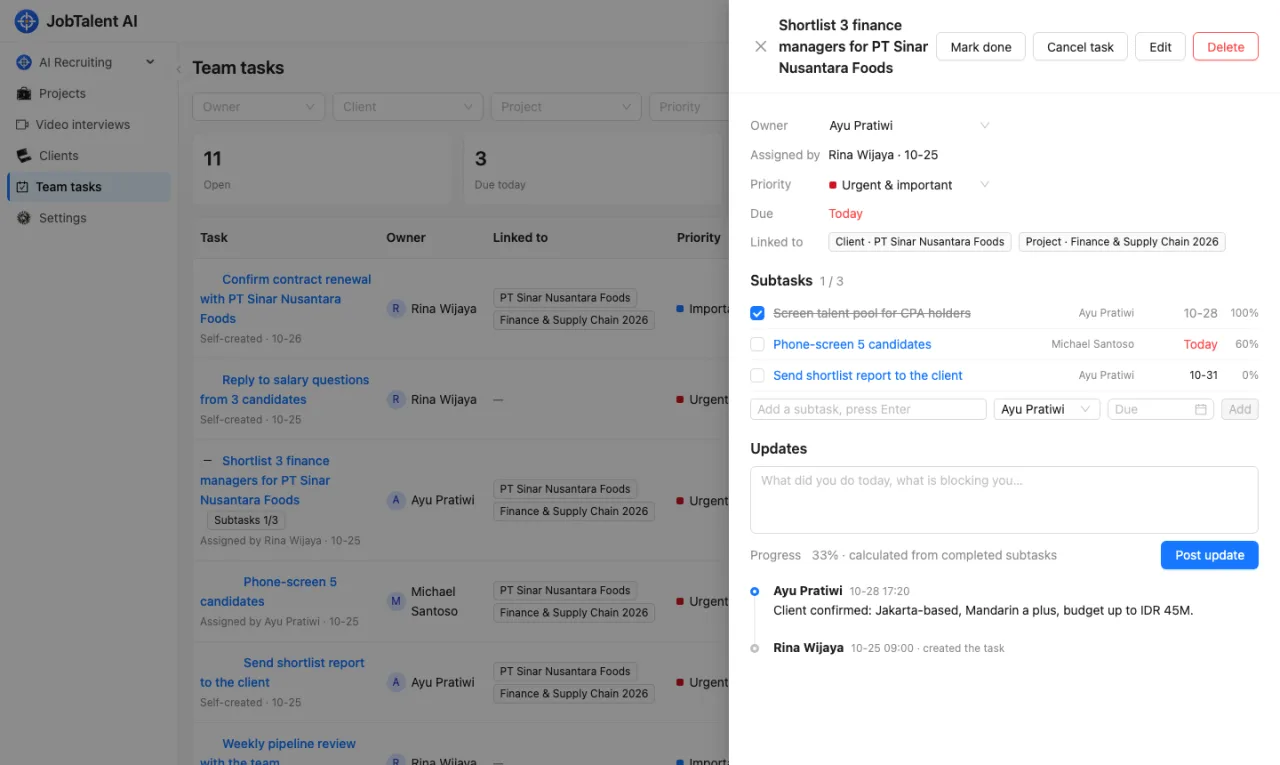
- Open a task, type under Subtasks, choose an owner and due date (the parent task's owner by default), then press Enter or click Add.
- A subtask inherits the parent's priority, client and project, and appears in its owner's priorities.
- Tick the box in front of a subtask to mark it done; the parent shows "Subtasks done / total", and its progress is calculated from the share of completed subtasks (1 of 3 done is 33%) and cannot be set by hand. When all subtasks are done, the owner marks the parent task done.
- Click a subtask to open it and post updates; the Part of link at the top takes you back to the parent.
The parent task's owner and assigner can add and edit its subtasks. A subtask cannot be broken down further, and deleting a parent task also deletes its subtasks.
Post updates
Open a task, write what you did and what is blocking you under Updates, adjust the progress slider and click Post update.
- When the owner posts, the person who assigned the task is notified; when the assigner posts, the owner is notified.
- At 100% the task is marked done automatically. You can also click Mark done, and Reopen it later if needed.
- If a task is no longer needed, click Cancel task to mark it Cancelled. Unlike deleting, the task and its updates are kept; it no longer counts as open or appears in the calendar, and you can Reopen it at any time. Cancelled subtasks do not count toward the parent's progress.
- The owner, the assigner and recruiting admins can edit a task and post updates; only the assigner and recruiting admins can delete it.
Three views
- List: filter by owner, client, project, priority and status, with counts for open, due today, overdue and done this week.
- By member: one column per member with the tasks they own.
- Daily updates: what each member posted on a given day; members with open tasks who have not posted are listed too.