Besides Gmail, the system can receive resumes from any mailbox that supports IMAP, such as Alibaba Mail (Aliyun), Tencent Exmail, NetEase Enterprise Mail, or your company's own mail server.
Supported mailboxes
| Mailbox | Choose | IMAP server |
|---|---|---|
| Gmail | Gmail | imap.gmail.com, port 993 |
| Alibaba Mail | Alibaba Mail (Aliyun) | imap.qiye.aliyun.com, port 993 |
| Tencent Exmail | Tencent Exmail | imap.exmail.qq.com, port 993 |
| NetEase Enterprise Mail | NetEase Enterprise Mail | imap.qiye.163.com, port 993 |
| Other | Other (custom IMAP) | Enter it yourself, see below |
When you pick a provider, the server address is filled in automatically. Only SSL connections are supported (usually port 993).
Outlook / Microsoft 365 is not supported yet: Microsoft no longer allows password login over IMAP.
Before you connect
- Enable IMAP: most business mailboxes have it off by default. Turn it on in the web mailbox settings (usually called "Client settings" or "POP3/SMTP/IMAP"). If unsure, ask your mail administrator.
- Prepare the password: - Without 2-step verification / secure login, use the mailbox login password. - With it turned on, create a "client-specific password" (sometimes called an "authorization code") in the mailbox settings and use that instead of the login password. - Gmail always needs an app password, see How to prepare a Gmail recruiting mailbox.
Connect it in the system
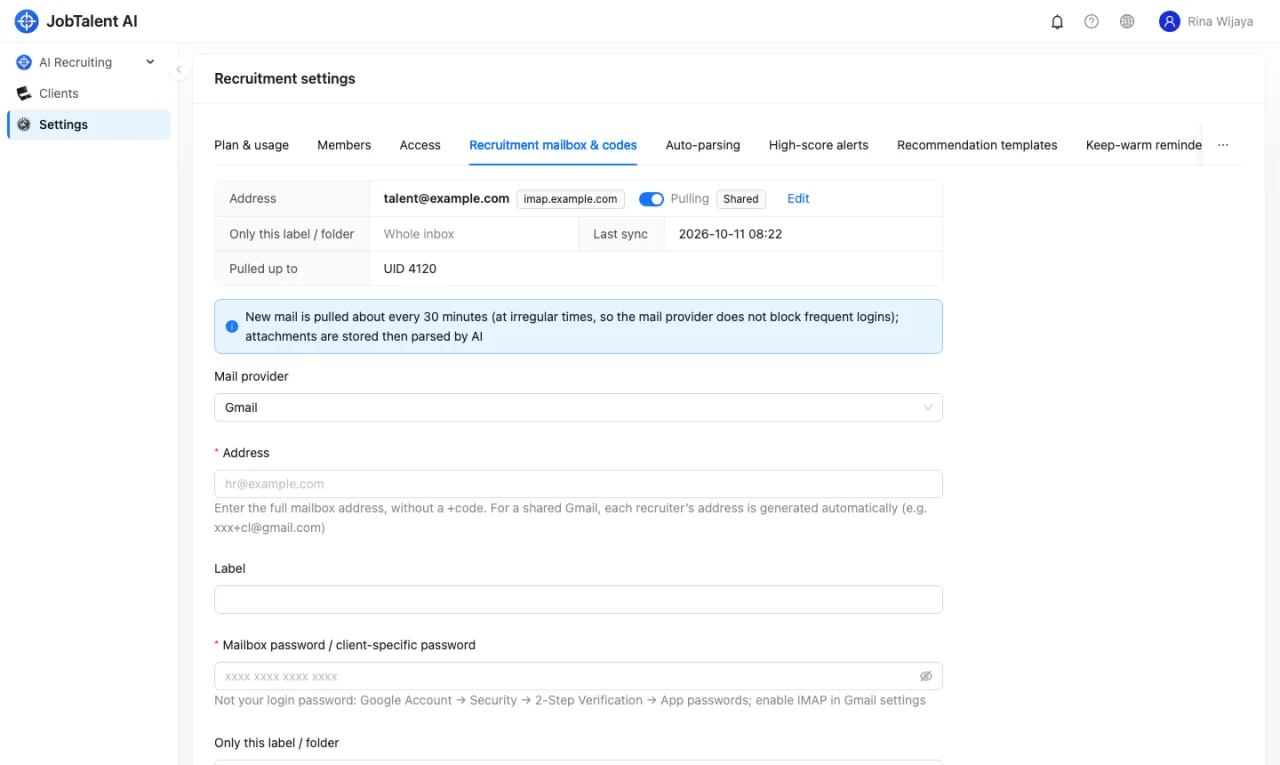
- Admins: "Settings" → "Recruitment mailbox & codes". HR connecting their own mailbox: avatar at the top right → "My recruiting mailbox".
- Under "Mail provider", pick your mailbox. If it is not listed, choose "Other (custom IMAP)" and enter the IMAP server and port.
- Enter the full mailbox address (e.g. hr@yourcompany.com) and the password.
- Click "Test connection" first: the system connects, logs in, opens the inbox and tells you how many emails are in it. Nothing is saved and no email is pulled.
- Save once the test succeeds.
If the test fails
| Message | Usual cause |
|---|---|
| Cannot reach the server | Wrong server address or port, or the mailbox does not support SSL |
| Login failed | Wrong password; IMAP not enabled; 2-step login is on but you entered the login password (use a client-specific password) |
| Folder not found | The folder name in "Only this label / folder" is wrong; leave it empty for the whole inbox |
Differences from Gmail
- "Only this label / folder" means a folder in business mailboxes: create a folder such as "Resumes", add a mail rule that moves resumes into it, and enter the folder name here.
- Splitting a shared mailbox by recruiter code (xxx+code@…) is a Gmail feature. Whether a business mailbox supports + addresses depends on the provider; if unsure, let each HR connect their own mailbox so resumes are assigned to them automatically, see Connect a recruiting mailbox.
- Pull frequency and the automatic back-off after errors work the same as for Gmail.