Unsuitable candidates need a polite decline; good ones need a salary question or an interview invitation. Writing each email by hand is slow, and adding too many people on WhatsApp in one day can get your number blocked. Bulk replies handle a whole batch:
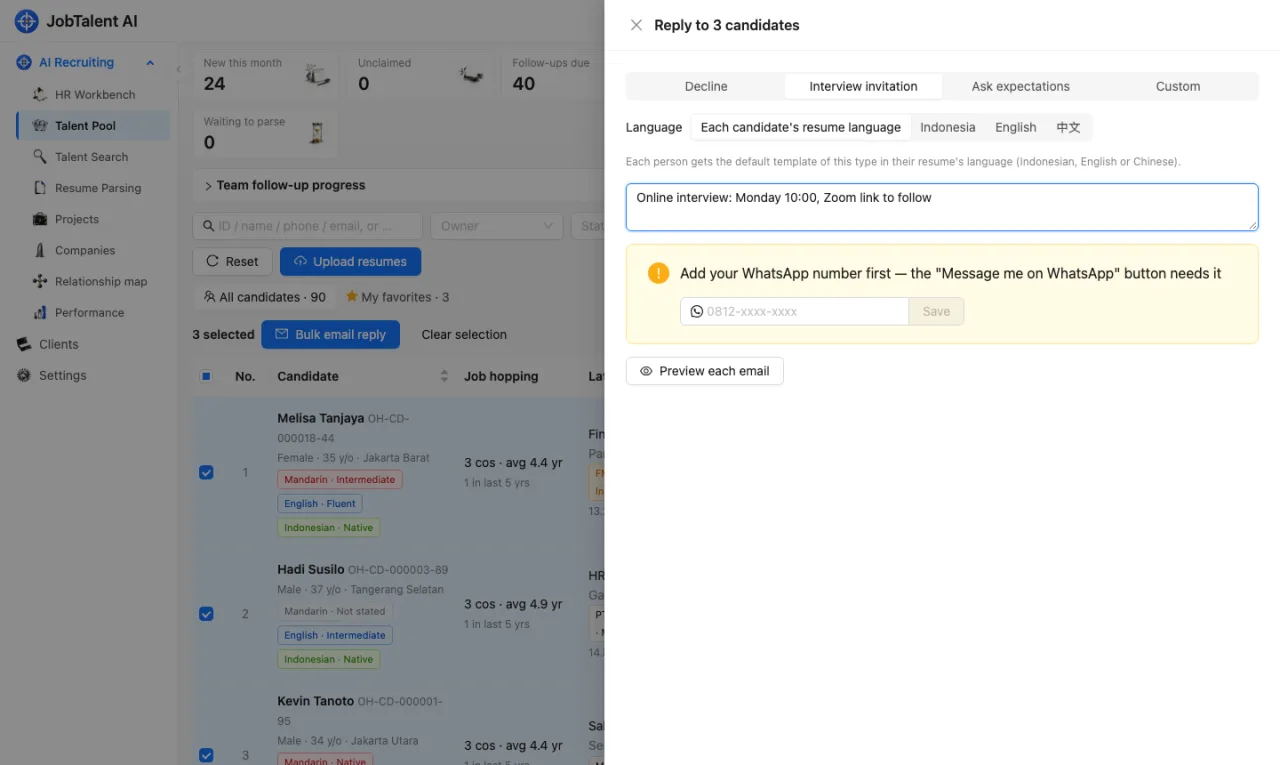
- Select candidates, choose "Decline", "Interview invitation", "Ask expectations" or "Custom", and queue them in one click.
- Each email uses the language of the person's resume: Indonesian, English or Chinese.
- The email has a green "Message me on WhatsApp" button. When the candidate taps it, their name, the position and their reference are filled in automatically. The candidate contacts you, so you don't have to add people one by one.
- AI can add one or two personal sentences based on each resume, or you can use the fixed template only.
How to send
- Go to "AI Recruiting" → "Talent Pool" or "Talent Search", select the people, and click "Bulk email reply". For one person, use "Reply by email" in the candidate details.
- Choose the type: Decline / Interview invitation / Ask expectations / Custom.
- Language defaults to "Each candidate's resume language"; you can also pick one language and template.
- For invitations and expectation questions you can add a note, for example the interview time, place or meeting link.
- The first time, enter your WhatsApp number (it is remembered).
- Click "Preview each email" to check the recipient, sending mailbox, subject and body for each person. People without an email address, or who got a similar email in the last 7 days, are flagged and can be unticked.
- Click "Queue emails".
Which mailbox sends, and how fast
- The reply goes from the recruiting mailbox that received the candidate's resume, in the same thread as their original email. If there isn't one, your own connected mailbox is used, then the shared company mailbox.
- To avoid looking like bulk mail: 30–60 seconds between emails from the same mailbox, at most 150 per mailbox per day; the rest continue the next day.
- Progress shows in the same window: queued, sent, failed, and who clicked WhatsApp. Queued emails can be cancelled.
- Gmail, Aliyun, Tencent and NetEase business mail need no extra setup. Mailboxes connected as "Other (custom IMAP)" need the "Outgoing server (SMTP)" filled in.
What happens after sending
| Type | Done automatically |
|---|---|
| Decline | The position's stage becomes "Not passed" (reason: not qualified); candidates still "New" become "On hold" |
| Interview invitation | The candidate becomes "In process"; the position's stage moves to "Shortlisted" |
| Ask expectations | The candidate becomes "In process" |
| Custom | Status unchanged |
Each email is logged as an "email" follow-up on the candidate. People who are already further along are never moved back — for example, someone already interviewing who gets an expectations email keeps their stage.
Templates
"Settings" → "Recruitment settings" → "Reply templates" shows the built-in templates in Chinese, English and Indonesian. To change one, click "Copy as new", edit it and set it as "Default"; bulk replies will then use yours. You can also write and save a new template directly in the bulk reply window.
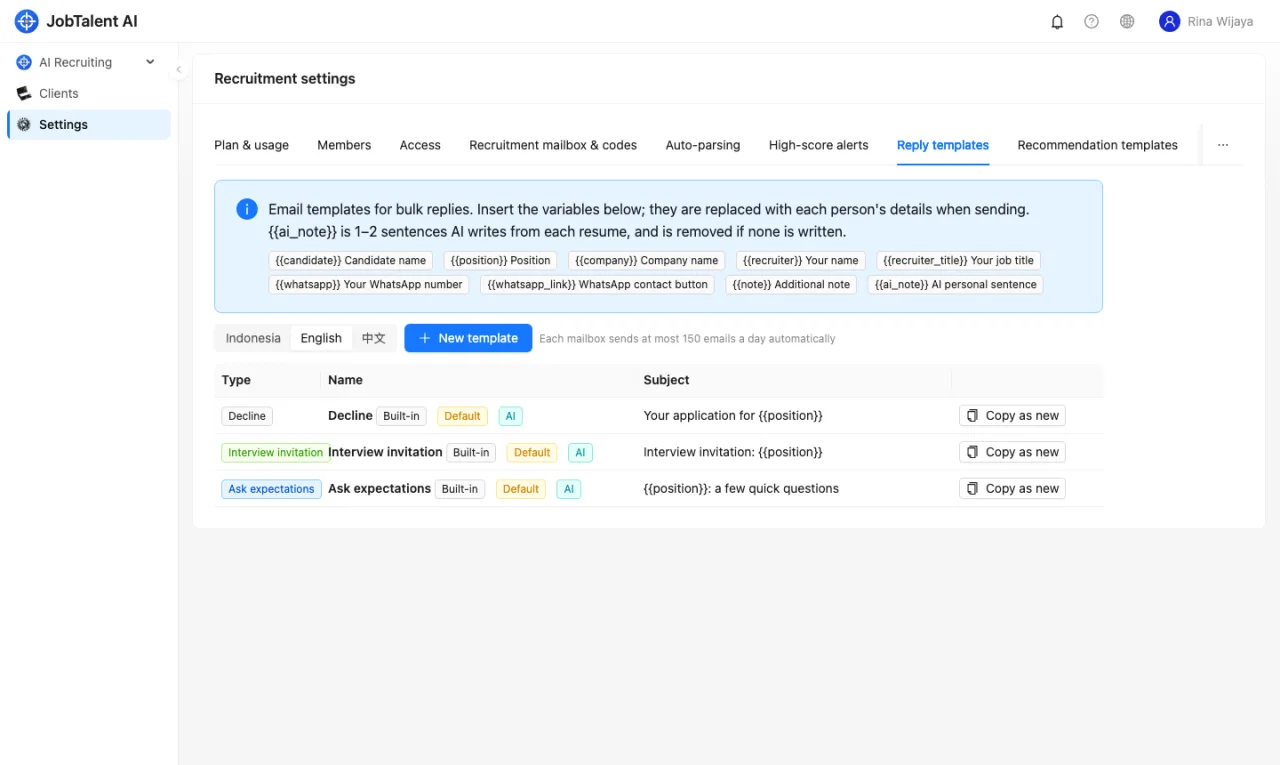
You can insert these variables; they are replaced with each person's details when sending:
| Variable | Content |
|---|---|
{{candidate}} | Candidate name |
{{position}} | Position |
{{company}} | Your company name |
{{recruiter}} / {{recruiter_title}} | Your name / job title |
{{whatsapp}} / {{whatsapp_link}} | Your WhatsApp number / the green contact button |
{{note}} | The note entered when sending |
{{ai_note}} | 1–2 sentences AI writes from the resume; removed if none is written |
Set job titles under "Settings" → "Members", see Members, roles and permissions.