Besides collecting automatically from recruiting mailboxes, resumes can enter the system in the ways below. Whichever way they come in, they go through the same AI parsing and matching.
Upload on the page
In the "Talent Pool", click "Upload resumes". Drag files in or click to choose them. You can choose several at once.
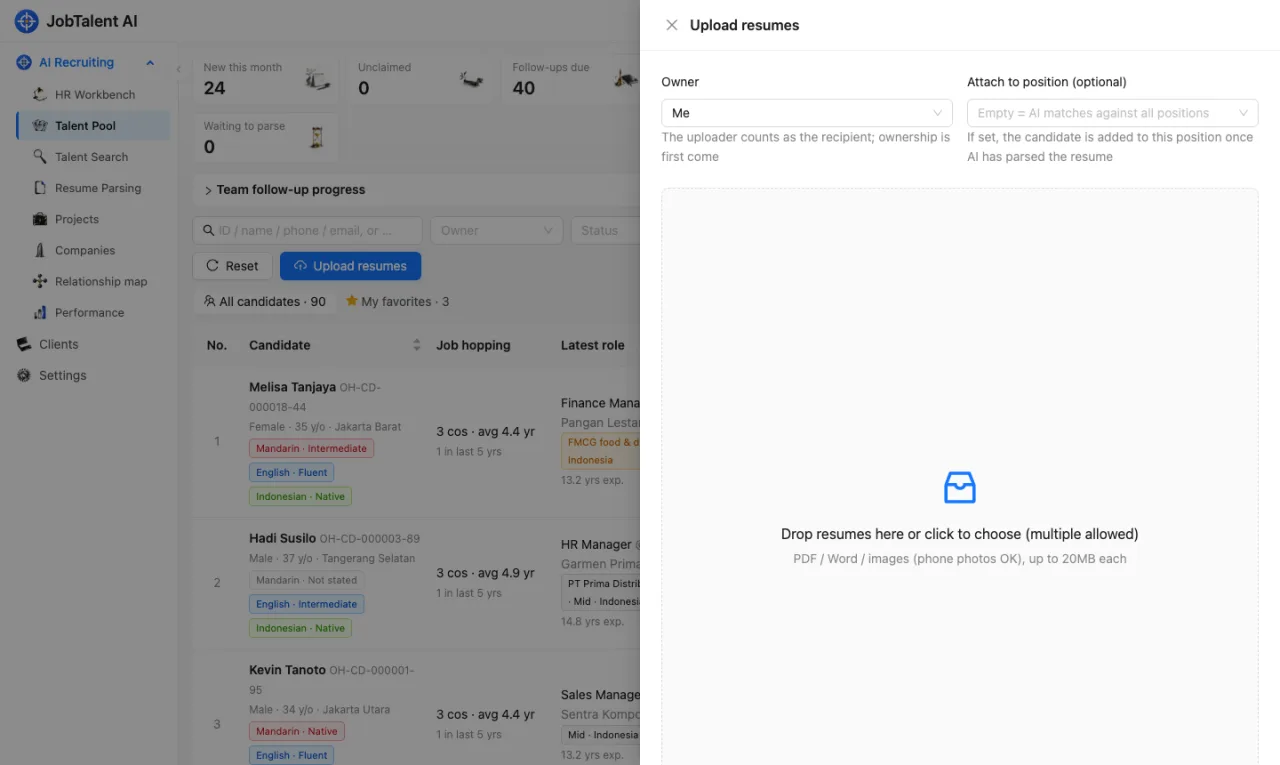
- PDF, Word and images (JPG, PNG; phone photos are fine) are supported, up to 20MB per file.
- PDF and .docx files are parsed from their text. Scanned files and images are read by AI with image recognition.
- Old .doc files are stored and can be downloaded, but are not parsed. Their status shows "Unsupported (stored only)". Save them as .docx or PDF and upload again.
- "Attach to position" is optional. If you choose a position, the candidate is added to it after parsing. If not, AI matches them against all open positions automatically.
- If the same file was uploaded before, you see "Already uploaded" and it is not added again.
The uploader counts as the recipient, so the candidate belongs to you by default. People with "Recruitment admin" permission can assign the owner to someone else when uploading.
In a recruiting project, each position also has an "Upload resumes to this position" button. It works the same way and attaches to that position by default.
Job application links
In a recruiting project, each position has an "Application link" button. Every recruiter has their own link for every position. You can share it on LinkedIn, WhatsApp groups and other places.
- Candidates don't need to sign up or log in. They open the link, read the job, enter their name and WhatsApp number (email is optional), their current monthly take-home (net) salary (optional), choose how soon they can start (immediately / within 1 month / 1–2 months / more than 2 months), tick the data-use consent and upload a resume.
- After the resume is parsed, the salary and start time the candidate entered go into their "Current status": current salary and notice period. Values you have already entered by hand are not overwritten.
- The page is in Indonesian by default. Candidates can switch to English or Chinese. The client company's name is not shown.
- Resumes submitted through the link belong to the link's owner, are added to that position automatically and go through AI matching.
- Under the link you can see how many times it was opened and how many applications it received.
- If the position is not "Open" or the project is not "Open", candidates who open the link see "This link is no longer valid".
- If you don't want to use a link any more, click "Revoke link". The old link stops working immediately, and a new link is created the next time you open it.
Resume in the email body
Some candidates don't attach a file and write their resume in the email body instead. If an email has no attachment and the body is long enough (300 characters or more), the system parses the body as a resume. Short emails that only say something like "please see attached" are ignored.
Block senders of ads
Recruiting mailboxes will receive sales emails from headhunting firms and training providers. When such an email fails to parse, you can click "Block sender" on it on the "Resume Parsing" page, and choose:
- Block only this address;
- Or block the whole domain (the whole company). Public email services such as Gmail, Yahoo and Outlook can't be blocked by domain, only by single address.
For blocked senders, future emails are only logged. They are not parsed, cost no AI usage and do not use resume credits. AI also checks failed emails to see whether they are ads or spam, and if so blocks the sender automatically (people who have sent real resumes, colleagues, and senders who were unblocked before are never blocked automatically).
The blocklist is under "Blocked senders" at the bottom of "Settings" → "Recruitment mailbox & codes". If you blocked someone by mistake, click "Unblock". Resumes that were held back are queued for parsing again.