Before connecting, get the mailbox ready: for Gmail, follow How to prepare a Gmail recruiting mailbox to get an app password; for business mailboxes such as Alibaba Mail, Tencent Exmail or NetEase Enterprise Mail, follow Receive resumes with Alibaba Mail, Tencent Exmail and other mailboxes to enable IMAP and prepare the password.
Outlook / Microsoft 365 is not supported yet: Microsoft no longer allows password login over IMAP.
There are two ways to connect. You can use both at the same time.
Option 1: Shared company mailbox + recruiter codes
Good for a team that gives out one email address. An admin (or someone with "Recruitment admin" permission) sets it up:
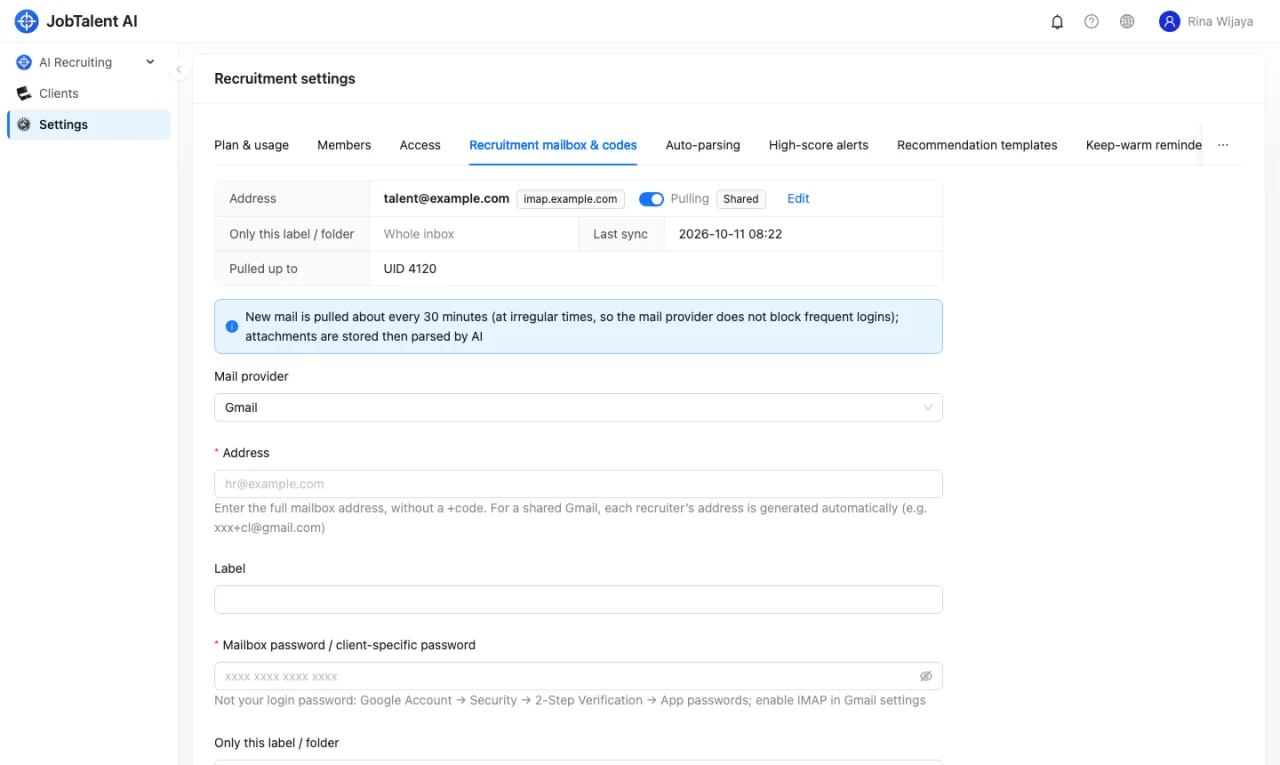
- Go to "Settings" → "Recruitment mailbox & codes".
- Under "Mail provider", choose Gmail.
- In "Address", enter the base address without
+code, for examplejobs@gmail.com. - In "Mailbox password / client-specific password", enter the 16-character app password you prepared.
- Under "Belongs to", choose "Shared".
- Click "Test connection" first: the system connects, logs in, opens the inbox (or the label you entered) and tells you how many emails are in it. Nothing is saved.
- Once the test succeeds, click "Test login and add". The system tries to log in again and only saves if it succeeds.
- Under "Recruiter codes (plus addresses)" below, add a code for each recruiter, for example
cl. A code can only be 1–16 lowercase letters or digits.
Each code gives one application address, for example jobs+cl@gmail.com. Mail sent to this address arrives in the same mailbox, but the system assigns the resume to the right person by code.
- Recruiters can see their fixed resume address in the "HR Workbench". Post it on the job platforms.
- Mail without a code goes to "Unclaimed". Someone with "Recruitment admin" permission assigns an owner in the talent pool.
- If one email contains two different codes, it also goes to "Unclaimed". The system does not guess.
- A code cannot be renamed after it is created (the address is already out there). If it is no longer needed, you can disable it. Assigning it to another person only affects mail that arrives later.
Addresses like "mailbox+code@…" are a Gmail feature. Whether a business mailbox supports them depends on the provider. If unsure, use Option 2 and let each HR connect their own mailbox, so resumes are assigned to them automatically.
Option 2: HR connects their own mailbox
Good when each HR uses a different mailbox, either Gmail or a business mailbox. The HR does this themselves:
- Click your avatar in the top right → "My recruiting mailbox".
- Under "Mail provider", pick your mailbox. If it is not listed, choose "Other (custom IMAP)" and fill in "IMAP server" and "Port (SSL)".
- Enter your mailbox address and fill in "Mailbox password / client-specific password" as the hint under the field says: for Gmail, the app password; for a business mailbox, the mailbox password, or a client-specific password if 2-step verification / secure login is on.
- We recommend filling in "Only this label / folder": for Gmail, a label name, see Resumes only: use a Gmail label; for a business mailbox, a folder name.
- Click "Test connection" first to check that it can connect, log in and open the label or folder.
- Once the test succeeds, click "Test login and add".
Resumes from this mailbox belong to this HR by default. If an email was sent to a colleague's code address, it still belongs to that colleague.
Admins can also see all mailboxes in "Recruitment mailbox & codes". They can use "Belongs to" to assign a mailbox to an HR, or change it back to "Shared".
Two options
- Start pulling right after saving: if unchecked, the mailbox is only saved and no mail is pulled. You can edit it and turn this on later.
- Only new mail from now on (skip existing inbox): if checked, only mail that arrives from now on is collected. If unchecked, the first sync treats every existing email in the inbox as an application, and the attachments in those emails also use resume credits. In "My recruiting mailbox" this option is checked by default.
How often mail is pulled
- Each mailbox is pulled about every 30 minutes (randomly between 24 and 36 minutes). This avoids frequent logins that the mail provider (for example Gmail) may block.
- A newly connected mailbox is pulled for the first time within a few minutes.
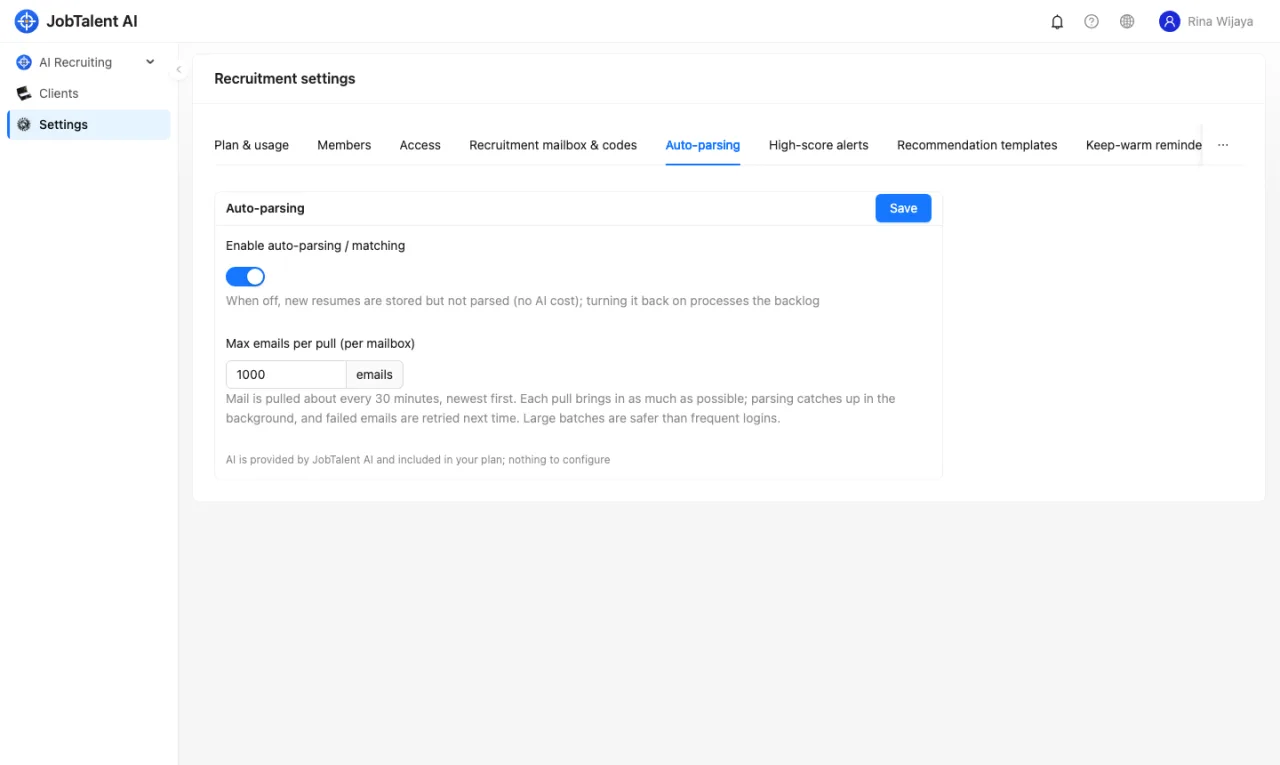
- Newest mail is pulled first, then older mail. The maximum per pull can be changed under Recruit settings → Auto parsing (default 1,000), which usually brings in all old mail in one go.
- Mail is brought in first; AI then parses it in the background. Mail that failed to download is retried in the next round.
When it can't connect
If the mailbox login fails or the connection is down, "Last error" is shown under the mailbox. The system retries automatically after a while: starting at 10 minutes, waiting longer after each failure, up to 4 hours. This keeps the mail provider (for example Gmail) from rejecting the logins as too frequent.
Common causes:
- Gmail: the Google password was changed (the old app password stops working) or the app password was deleted. Create a new one.
- Business mailbox: the mailbox password was changed, the client-specific password was deleted, or IMAP was turned off.
Click "Edit" next to the mailbox, enter the new password (or fix the settings), optionally click "Test connection" to check, then save. It retries within a few minutes, without waiting for the originally scheduled time.
If single emails fail to download, the system retries them automatically. After several failures they are marked "given up". You can click "Retry all given-up" to try again.